Install your UA300 in 20 minutes. Simple steps. No technical knowledge needed.
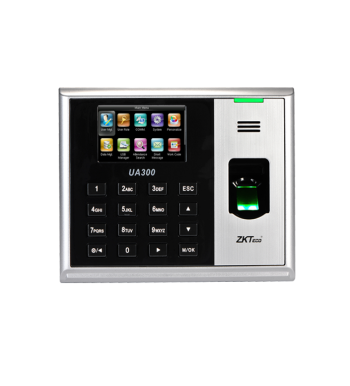
What is UA300?
UA300 is a fingerprint attendance machine for tracking employee time. It stores 3,000 fingerprints and 100,000 attendance records.
Why Choose UA300?
✅ Fast – Verifies in 1 second
✅ Accurate – 99.9% fingerprint matching
✅ Easy – Simple 3-inch touch screen
✅ Connected – WiFi and USB support
✅ Affordable – Best value in Dubai
Perfect for: Offices, factories, schools, hospitals (10-500 employees)
What You Get
- UA300 Device
- Power adapter (5V)
- Network cable
- Mounting screws
- ZKTime.net 3.0 software
- 1 Year warranty
Installation in 3 Steps
Step 1: Mount the Device (5 minutes)
Where to install:
- Indoor location
- Height: 4-5 feet from floor
- Near power socket
- Near WiFi router
How to mount:
- Mark 4 screw holes on wall
- Drill and insert wall plugs
- Screw the bracket
- Hang UA300 device
- Connect power cable
Device turns on automatically.
Step 2: Connect to Network (5 minutes)
On UA300 Screen:
Press MENU : Enter password(123456)
Go to: Settings → Network → TCP/IP
↓
Enter your details:
– IP Address: 192.168.1.201
– Subnet: 255.255.255.0
– Gateway: 192.168.1.1
↓
Press OK → Connect network cable
Test connection: Type device IP in browser. If page opens, connection works!
Step 3: Setup Software (10 minutes)
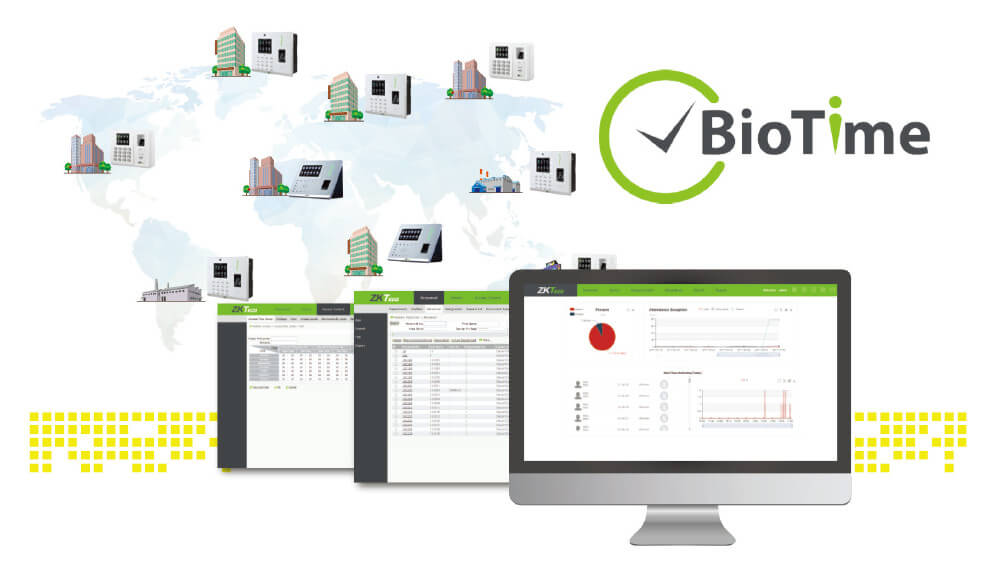
Install ZKTime.net 3.0:
- Download from zkteco
- Run installer on Windows PC
- Click Next → Next → Install
- Open ZKTime.net 3.0
Add Your Device:
- Click “Add Device”
- Enter:
- Name: Main Gate
- IP: 192.168.1.201
- Port: 4370
- Click “Test” → Should show “Connected”
- Click Save
Done! Your device is ready.
Add Employees (2 Ways)
Method 1: On Device (Quick)
MENU → Users → Add New
↓
Enter ID: 001
Enter Name: Ahmad Khan
↓
Place finger 3 times
↓
Done!
Method 2: On Computer (Better for many employees)
- Open ZKTime.net software
- Click “Add Employee”
- Fill: ID, Name, Department
- Click “Register Fingerprint”
- Employee places finger 3 times
- Click “Download to Device”
Tip: Register 2 fingers per person for backup.
Daily Use
How Employees Mark Attendance:
- Place finger on scanner
- Wait for beep
- Screen shows: “Thank You”
- Done in 1 second!
How to Check Records:
On Software:
- Open ZKTime.net
- Click “Upload from Device”
- Go to “Attendance Records”
- Select date range
- Export to Excel
Reports available:
- Daily attendance
- Late arrivals
- Early leaves
- Monthly summary
- Overtime hours
Important Settings
Set Working Hours:
Software → Shifts → Add Shift
↓
Name: Morning Shift
Time: 9:00 AM – 5:00 PM
Grace: 15 minutes
↓
Assign to employees → Save
Enable Auto Backup:
Settings → Auto Upload
↓
Turn ON
Interval: Every 1 hour
↓
Save
Now data uploads automatically!
Common Problems & Quick Fixes
❌ Device Not Connecting
Fix:
- Check network cable is plugged in
- Ping device: Open CMD, type
ping 192.168.1.201 - Restart device and router
- Check firewall allows port 4370
❌ Fingerprint Not Reading
Fix:
- Clean sensor with soft cloth
- Dry your finger
- Press finger flat and firm
- Try different finger
- Re-register fingerprint
❌ Data Not Showing
Fix:
- Click “Upload from Device” manually
- Check device date/time is correct
- Restart ZKTime.net software
- Clear old records if memory full
❌ Forgot Admin Password
Fix:
- Press Menu 5 times quickly
- Enter master password: 888888
- Reset your password
Maintenance Tips
Every Week:
- Clean fingerprint sensor
- Check data is uploading
Every Month:
- Backup data to external drive
- Delete records older than 6 months
- Check for software updates
Keep sensor clean = Better performance!
Technical Specifications
| Feature | Details |
|---|---|
| Fingerprints | 3,000 users |
| Records | 100,000 |
| Speed | < 1 second |
| Screen | 3-inch color |
| Connection | TCP/IP, USB, RS485 |
| Cards | 10,000 (optional) |
| Power | DC 5V |
| Size | 180 × 135 × 37 mm |
Get Support
ByteFlow provide Authentic Guide
📞 Call/WhatsApp: +971543282042
📧 Email: info@byteflow.ae
🌐 Website: www.byteflow.ae
⏰ Support: Mon-Sat, 9 AM – 6 PM
We provide:
- Phone support
- Remote assistance
Frequently Asked Questions:
Q: Works without internet?
Yes. Stores data locally. Upload when internet returns.
Q: How many fingers per person?
Recommended: 2 fingers as backup.
Q: Can use RFID cards?
Yes. Optional card reader available.
Q: Power cut affects data?
No. Data saved permanently in memory.
Q: Works with payroll software?
Yes. Export data to Excel/CSV format.
Q: Warranty coverage?
1 year full warranty. Free replacement if defective.