By ByteFlow | Your Trusted Guide to Workforce Management Solutions
Why You Need This Guide
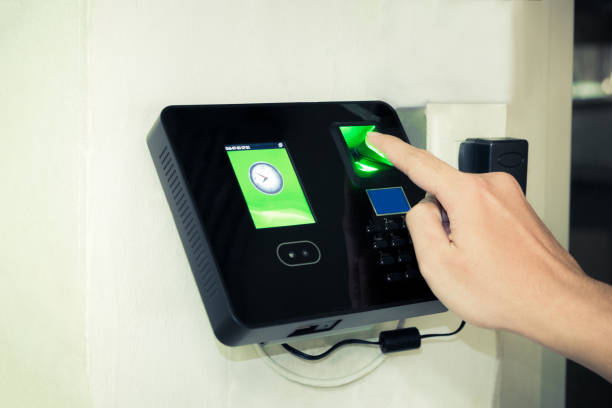
Are you struggling with inaccurate attendance records, time theft, or buddy punching in your workplace? You’re not alone. Traditional attendance methods cost businesses in Dubai an average of 5-7% of their annual payroll due to time fraud and administrative errors.
ZKTeco biometric attendance systems eliminate these challenges completely, but only when installed and configured correctly. A poorly set up system leads to frustrated employees, rejected fingerprints, connectivity issues, and wasted investment.
This comprehensive guide solves that problem. Whether you’re installing your first biometric device or upgrading from an older system, you’ll find everything you need to deploy a professional, reliable attendance tracking solution that works from day one.
What You’ll Learn
In this step-by-step guide, we walk you through the complete installation and configuration process for all major ZKTeco models, including:
Covered Devices: UA300, UA760, G5, UA860, FaceDepot 4A, BioPro MH40, BioPro MH30, BioPro MH20, Horus E1, Horus E2, G4 Pro, and M6
What Makes This Guide Different:
You won’t find generic instructions copied from user manuals here. This guide is built from real-world installation experience across hundreds of deployments in Dubai and the UAE. We’ve encountered every challenge, solved every problem, and documented the solutions that actually work in Middle East business environments.
From selecting the right mounting location considering Dubai’s climate to configuring network settings that work with your existing IT infrastructure, every recommendation is tested and proven. We cover the mistakes installers commonly make and show you how to avoid them, the settings that manufacturers don’t emphasize but make all the difference, and the troubleshooting steps that solve 95% of common issues.
Who This Guide Is For:
- IT managers deploying attendance systems for the first time
- Business owners looking to eliminate time theft and streamline payroll
- HR professionals responsible for workforce management technology
- Facility managers upgrading from card-based systems
- Technical staff handling device installation and maintenance
- Anyone who wants to understand their biometric attendance system completely
What You’ll Achieve:
By following this guide, you’ll install a fully functional biometric attendance system with accurate user enrollment, reliable network connectivity, seamless software integration, automated attendance reporting, and minimal maintenance requirements. Your system will work consistently, your employees will adapt quickly, and you’ll see immediate improvements in time tracking accuracy.
Let’s get started with proper planning and preparation to ensure your installation succeeds the first time.
Table of Contents
- Pre-Installation Planning
- Tools and Materials Required
- Device Installation Steps
- Network Configuration
- Software Setup and User Enrollment
- Testing and Troubleshooting
- Maintenance Best Practices
1. Pre-Installation Planning
Site Survey Checklist
Before beginning installation, conduct a thorough site assessment:
Location Requirements:
- Choose areas with stable temperature (0°C to 45°C for most models)
- Avoid direct sunlight exposure on fingerprint or facial recognition sensors
- Ensure height accessibility: mount devices at 120-150cm from floor level
- Select locations with minimal dust and moisture
- Verify adequate lighting for facial recognition models (minimum 100 lux)
Network Infrastructure:
- Confirm available power outlets (220V AC for most models)
- Check network connectivity: Ethernet ports or stable WiFi signal
- Verify IP address availability in your network
- Ensure firewall permissions for device communication
Device Selection Guide:
- UA300 & UA760: Best for small to medium offices (up to 3,000 users)
- G5 & G4 Pro: Ideal for high-security environments requiring multi-modal verification
- UA860: Suitable for large enterprises (up to 10,000 users)
- FaceDepot 4A: Perfect for touchless attendance in healthcare or food industries
- BioPro MH Series: Outdoor-rated for harsh environments
- Horus E1/E2: Advanced AI facial recognition for premium installations
- M6: Compact solution for small teams or multiple entry points
| Feature | UA300 | UA760 | G5 | G4 Pro | UA860 | FaceDepot 4A | BioPro MH40 | BioPro MH30 | BioPro MH20 | Horus E1 | Horus E2 | M6 |
|---|---|---|---|---|---|---|---|---|---|---|---|---|
| User Capacity | 3,000 | 3,000 | 10,000 | 3,000 | 10,000 | 3,000 | 5,000 | 3,000 | 1,500 | 50,000 | 30,000 | 1,000 |
| Fingerprint Records | 3,000 | 4,000 | 10,000 | 6,000 | 10,000 | N/A | 5,000 | 3,000 | 1,500 | N/A | N/A | 1,000 |
| Transaction Storage | 100,000 | 100,000 | 200,000 | 100,000 | 200,000 | 50,000 | 100,000 | 50,000 | 30,000 | 100,000 | 100,000 | 80,000 |
| Recognition Method | Fingerprint | Fingerprint | Face + Fingerprint + Card | Face + Fingerprint | Fingerprint | Face (Touchless) | Face + Fingerprint | Face + Fingerprint | Face + Fingerprint | Face (AI) | Face (AI) + Fingerprint | Fingerprint |
| Display Type | 2.8″ TFT | 2.8″ TFT | 4.3″ Touch | 4.3″ Touch | 2.8″ TFT | 8″ Touch | 5″ Touch | 4.3″ Touch | 2.8″ TFT | 7″ Touch | 8″ Touch | 2.4″ TFT |
| Communication | TCP/IP, USB | TCP/IP, USB | TCP/IP, WiFi, 4G | TCP/IP, WiFi | TCP/IP, USB | TCP/IP, WiFi, Cloud | TCP/IP, WiFi | TCP/IP, WiFi | TCP/IP, USB | TCP/IP, WiFi, 4G | TCP/IP, WiFi, 4G | TCP/IP, USB |
| Temperature Range | 0°C to 45°C | 0°C to 45°C | 0°C to 45°C | 0°C to 45°C | 0°C to 45°C | 0°C to 40°C | -20°C to 60°C | -20°C to 60°C | -20°C to 60°C | 0°C to 45°C | -20°C to 60°C | 0°C to 45°C |
| Best For | Small offices, retail shops | Small-medium offices | High-security facilities | Corporate offices | Large enterprises | Hospitals, restaurants, hygiene-critical | Construction sites, factories | Outdoor entry points | Small outdoor gates | Premium corporate HQ | Large outdoor facilities | Startups, branch offices |
2. Tools and Materials Required
Essential Installation Kit
Hardware Tools:
- Phillips and flathead screwdrivers
- Power drill with masonry bits (6mm and 8mm)
- Wall plugs and screws (typically M6 x 40mm)
- Spirit level for alignment
- Cable tester (for network verification)
- Measuring tape
Materials:
- Cat6 Ethernet cable (if using wired connection)
- Cable conduit or trunking for neat installation
- Power surge protector
- Cable ties and clips
- Silicone sealant (for outdoor installations)
Software Requirements:
- ZKTeco ZKAccess 3.5 or BioTime 8.5 software
- Latest device firmware (download from ZKTeco website)
- Windows PC with administrator privileges
- Network scanning tool (Advanced IP Scanner recommended)
3. Device Installation Steps
Step 1: Unboxing and Inspection
- Carefully open the device package and verify contents against the packing list
- Check for any physical damage during shipping
- Confirm included items: device unit, power adapter, mounting bracket, installation screws, quick start guide, and warranty card
- Keep the serial number and model information accessible for registration
Step 2: Mounting Bracket Installation
For Wall Mounting:
- Mark the mounting position using the bracket template (typically included)
- Use a spirit level to ensure the bracket is perfectly horizontal
- Drill holes at marked positions using the appropriate bit size
- Insert wall plugs firmly into the drilled holes
- Secure the mounting bracket with screws, ensuring it’s firmly attached
- For outdoor models (BioPro series, Horus E2), apply weatherproof sealant around mounting points
For Turnstile or Stand Mounting:
- Align the device bracket with the turnstile mounting plate
- Use manufacturer-provided bolts to secure the connection
- Ensure all connections are tight and stable
Step 3: Device Attachment
- Carefully align the device with the mounted bracket
- Slide or click the device into position according to model specifications
- Secure with provided locking screws to prevent tampering
- Verify the device is firmly attached and level
Step 4: Power Connection
- Connect the power adapter to the device power port
- Route cables through conduit for a professional appearance
- Plug the adapter into a surge-protected power outlet
- Wait for the device to boot (typically 30-60 seconds)
- Confirm the device displays the home screen or initialization message
Step 5: Network Connection
For Wired Connection (Recommended):
- Connect one end of Cat6 cable to the device Ethernet port
- Connect the other end to your network switch or router
- Ensure the network LED indicator lights up (green or amber)
- Cable runs should not exceed 100 meters without a repeater
For WiFi Connection:
- Navigate to device menu: System → Network → WiFi
- Scan for available networks
- Select your network SSID
- Enter WiFi password using on-screen keyboard
- Confirm connection and note the assigned IP address
4. Network Configuration
Step 1: Accessing Device Settings
- On the device screen, navigate to: Menu → Settings → Communication
- Enter administrator password (default is typically 123456 or admin)
- Select Network Settings or TCP/IP option
Step 2: IP Address Configuration
For Static IP (Recommended for stability):
- Set IP Address Mode to “Static”
- Enter available IP address from your network range (example: 192.168.1.150)
- Set Subnet Mask (typically 255.255.255.0)
- Enter Default Gateway (your router IP, typically 192.168.1.1)
- Set Primary DNS (use Google DNS 8.8.8.8 or your network DNS)
- Save settings and reboot the device
For Dynamic IP (DHCP):
- Set IP Address Mode to “DHCP”
- Device will automatically obtain IP address from router
- Note the assigned IP address for software configuration
- Consider reserving this IP in your router’s DHCP settings
Step 3: Network Testing
- From a computer on the same network, open Command Prompt
- Type:
ping [device IP address]and press Enter - Successful connection shows replies with response times
- If ping fails, verify IP settings and network connectivity
Step 4: Port Configuration
- Ensure device port is set to 4370 (default for ZKTeco)
- Configure router port forwarding if accessing remotely
- Add device IP to firewall exceptions on your server
5. Software Setup and User Enrollment
Step 1: Installing ZKTeco Management Software
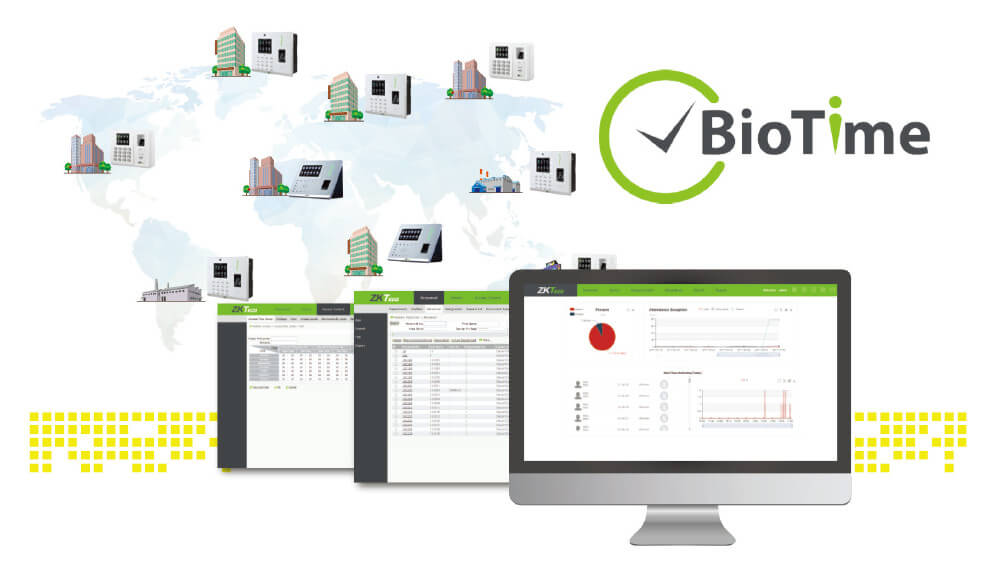
- Download ZKAccess 3.5 or BioTime 8.5 from ZKTeco official website
- Run installer with administrator privileges
- Follow installation wizard, accepting license agreement
- Choose installation directory (default is recommended)
- Complete installation and launch the software
Step 2: Adding Devices to Software
- Open ZKTeco software and navigate to Device Management
- Click “Add Device” or “Search Device”
- Software will scan network and display available devices
- Select your device from the list
- Enter device details:
- Device Name (example: “Main Entrance – UA860”)
- IP Address (as configured earlier)
- Port Number (4370)
- Device Password (default admin password)
- Click “Connect” and verify successful connection
- Device should appear in the active devices list with online status
Step 3: User Enrollment Process
Method 1: Direct Device Enrollment (Recommended for small teams)
- On the device, navigate to: Menu → User Management → New User
- Enter User ID (must be unique, typically employee number)
- Enter user’s full name using on-screen keyboard
- Assign user card number if using RFID cards
- Enroll biometric data:
For Fingerprint Enrollment:
- Select “Enroll Fingerprint”
- Place the same finger on sensor 3 times for accuracy
- Device will confirm successful enrollment with beep or visual indicator
- Enroll at least 2 fingers per user for redundancy
- Ensure fingers are clean and dry for best results
For Facial Recognition Enrollment:
- Select “Enroll Face”
- Position face within the guide frame on screen
- Keep face centered and at proper distance (30-50cm)
- Maintain neutral expression and remove glasses if requested
- Device captures multiple angles automatically
- Confirm successful enrollment
- Set user privilege level (Normal User, Administrator, etc.)
- Save user data to device memory
Method 2: Software-Based Enrollment (Better for large organizations)
- In ZKTeco software, navigate to Personnel → Add Personnel
- Enter employee details:
- Employee ID
- Full Name
- Department
- Position
- Contact Information
- For biometric enrollment through software:
- Connect fingerprint reader to PC (USB model)
- Click “Enroll Fingerprint” and follow prompts
- For face enrollment, use device camera or upload high-quality photo
- Assign access privileges and work schedules
- Synchronize data to device: Click “Upload to Device”
Step 4: Configuring Attendance Rules
- Navigate to Attendance Settings in software
- Define work shifts:
- Shift Name (example: “Day Shift”)
- Clock-in time window (example: 08:00 – 09:00)
- Clock-out time window (example: 17:00 – 18:00)
- Break times if applicable
- Set overtime calculation rules
- Configure late and early departure thresholds
- Define holiday and leave policies
- Apply shifts to respective employees or departments
Step 5: Setting Up Reporting
- Access Reports section in software
- Configure automatic report generation:
- Daily attendance summary
- Monthly timesheet
- Late arrival report
- Overtime report
- Absent employee list
- Set email notifications for reports
- Schedule automated report delivery to HR personnel
6. Testing and Troubleshooting
Comprehensive Testing Checklist
Day 1 Testing:
- Test each enrolled user’s biometric verification (minimum 5 attempts per user)
- Verify attendance records appear in software within 1-2 minutes
- Test during different times to ensure consistent performance
- Check data synchronization between device and software
- Verify timestamp accuracy (compare with actual time)
Week 1 Monitoring:
- Monitor false rejection rates (should be below 1%)
- Track system response time (should be under 1 second)
- Verify backup power functionality if installed
- Check network stability and connection uptime
- Review initial user feedback and address concerns
Common Issues and Solutions
Issue 1: Device Not Connecting to Network
Symptoms: Device shows offline status, cannot ping device IP
Solutions:
- Verify Ethernet cable is properly connected and functional
- Confirm IP address is not conflicting with another device
- Check if device and server are on the same network subnet
- Restart device and networking equipment
- Verify firewall is not blocking device communication
- Try connecting device directly to router to isolate issues
Issue 2: Fingerprint Recognition Failure
Symptoms: Device consistently rejects enrolled fingerprints
Solutions:
- Clean fingerprint sensor with soft, lint-free cloth
- Re-enroll fingerprints ensuring fingers are clean and dry
- Instruct users to place finger flat on sensor, covering entire surface
- Adjust fingerprint threshold in device settings (reduce sensitivity)
- Enroll multiple fingers per user for backup options
- Consider switching to facial recognition for users with damaged fingerprints
Issue 3: Face Recognition Not Working in Low Light
Symptoms: Facial recognition fails in morning or evening hours
Solutions:
- Install additional LED lighting around device area
- Adjust face recognition brightness threshold in settings
- Enable infrared mode for Horus series devices
- Reposition device to avoid backlighting from windows
- Consider upgrading to models with built-in fill light
Issue 4: Data Not Syncing to Software
Symptoms: Attendance records not appearing in management software
Solutions:
- Verify network connection between device and server
- Check if software service is running on server
- Manually trigger data download from device
- Verify device has sufficient memory (clear old logs if needed)
- Ensure system date and time are synchronized
- Check database connection in software settings
Issue 5: Slow Response Time
Symptoms: Device takes more than 3 seconds to verify users
Solutions:
- Reduce number of enrolled users per device (stay under capacity limit)
- Delete unused user accounts and old attendance records
- Update device firmware to latest version
- Optimize biometric template quality during enrollment
- Consider adding additional devices to distribute user load
7. Maintenance Best Practices
Daily Maintenance
- Wipe sensor surface with microfiber cloth to remove dust and fingerprints
- Verify device is responsive and displaying correct time
- Quick visual inspection for any physical damage or tampering
Weekly Maintenance
- Back up attendance data to server or cloud storage
- Review system logs for any error messages or anomalies
- Test a sample of user verifications to ensure accuracy
- Clean device screen with appropriate cleaning solution
- Inspect cable connections for any looseness
Monthly Maintenance
- Deep clean all sensors and optical components
- Update device firmware if new versions are available
- Review and optimize user database (remove terminated employees)
- Check device storage capacity and archive old data if needed
- Test backup power supply functionality
- Verify network connectivity and speed
- Review access logs for any security concerns
Quarterly Maintenance
- Comprehensive system audit and performance review
- Update management software to latest version
- Re-train users on proper device usage if needed
- Inspect mounting hardware for any loosening
- Review and update attendance policies in system
- Conduct disaster recovery drill (test data restoration)
Annual Maintenance
- Professional calibration of biometric sensors
- Complete system health check by certified technician
- Replace any worn or damaged components
- Review system capacity and plan for expansion if needed
- Update security credentials and passwords
- Comprehensive training refresh for administrators
Expert Tips for Optimal Performance
From Our Installation Team
- Fingerprint Quality Matters: Enroll fingerprints during mid-day when hands are neither too dry nor too moist. This creates the most reliable templates.
- Network Stability is Critical: Always use wired connections for devices in fixed locations. WiFi should only be used for portable or temporary installations.
- User Training is Essential: Spend 15 minutes training users on proper biometric presentation. This single step reduces 80% of common verification issues.
- Strategic Device Placement: Position devices where users naturally slow down (not directly at fast-moving doorways). This improves recognition accuracy.
- Regular Data Archival: Set up monthly automatic data archival to prevent device memory overflow. Devices perform best with less than 70% memory utilization.
- Redundancy Planning: For critical access points, consider installing dual devices or hybrid verification methods to prevent access issues during device maintenance.
When to Contact Professional Support
While this guide covers most installation scenarios, contact ByteFlow or ZKTeco certified support when:
- Installing systems for more than 500 users
- Integrating with existing access control or HR systems
- Deploying across multiple locations with centralized management
- Requiring custom reporting or compliance features
- Experiencing persistent technical issues after troubleshooting
- Planning system expansion or major upgrades
Conclusion
Proper installation and configuration of ZKTeco biometric attendance systems ensures accurate time tracking, enhanced security, and streamlined workforce management. By following this comprehensive guide, you’ll establish a reliable system that serves your organization for years to come.
The investment in quality installation pays dividends through reduced administrative overhead, elimination of time theft, and improved payroll accuracy. Our experience across hundreds of installations in Dubai and the UAE confirms that well-configured biometric systems deliver ROI within the first year of operation.
About ByteFlow
Our Services Include:
- Professional installation and configuration
- Custom software integration
- Ongoing technical support and maintenance
- User training and documentation
- System upgrades and expansion
- IT AMC support
Contact ByteFlow:
- Phone: [+971543282042]
- Email: [info@byteflow.ae]
- Website: www.byteflow.ae
Need Help with Your Installation?
Contact our expert team for professional installation services, technical support, or consultation on the best biometric solution for your business needs.
How long does it take to install a ZKTeco biometric attendance system?
Installation time varies by complexity. A single device with basic configuration takes 2-3 hours including mounting, network setup, and initial testing. For multiple devices across several locations with software integration, expect 1-2 days. Large enterprise deployments with 10+ devices and custom integration may require 3-5 days.
Can I install a ZKTeco attendance system myself, or do I need a professional?
Small businesses with 1-2 devices and basic IT knowledge can handle installation using this guide. However, professional installation is recommended for networks with more than 50 users, systems requiring integration with existing HR or payroll software, outdoor installations in harsh environments, or deployments across multiple locations. Professional installation ensures optimal performance and maintains warranty coverage.
Should I use WiFi or wired Ethernet for my attendance device?
Wired Ethernet is always recommended for permanent installations because it provides stable, reliable connectivity, eliminates interference issues, ensures faster data synchronization, and reduces troubleshooting needs. Use WiFi only for temporary installations, locations where running cables is impractical, or devices that may need relocation. WiFi performance can degrade with network congestion and requires stronger security configuration.
Is biometric data stored securely? Can it be stolen?
ZKTeco devices store biometric templates, not actual fingerprint or face images. Templates are mathematical representations that cannot be reverse-engineered to recreate the original biometric. Data is encrypted using AES-256 encryption standards both in storage and during transmission. Additional security measures include password-protected administrative access, secure communication protocols (HTTPS/SSL), and local storage without cloud upload by default. This design complies with GDPR and UAE data protection regulations.